How to add your Kloot overlay to OBS (one browser source)
Kloot runs through a single browser source — one URL that powers every tool. Add it once and you never touch OBS again. Here’s the whole setup, start to finish.
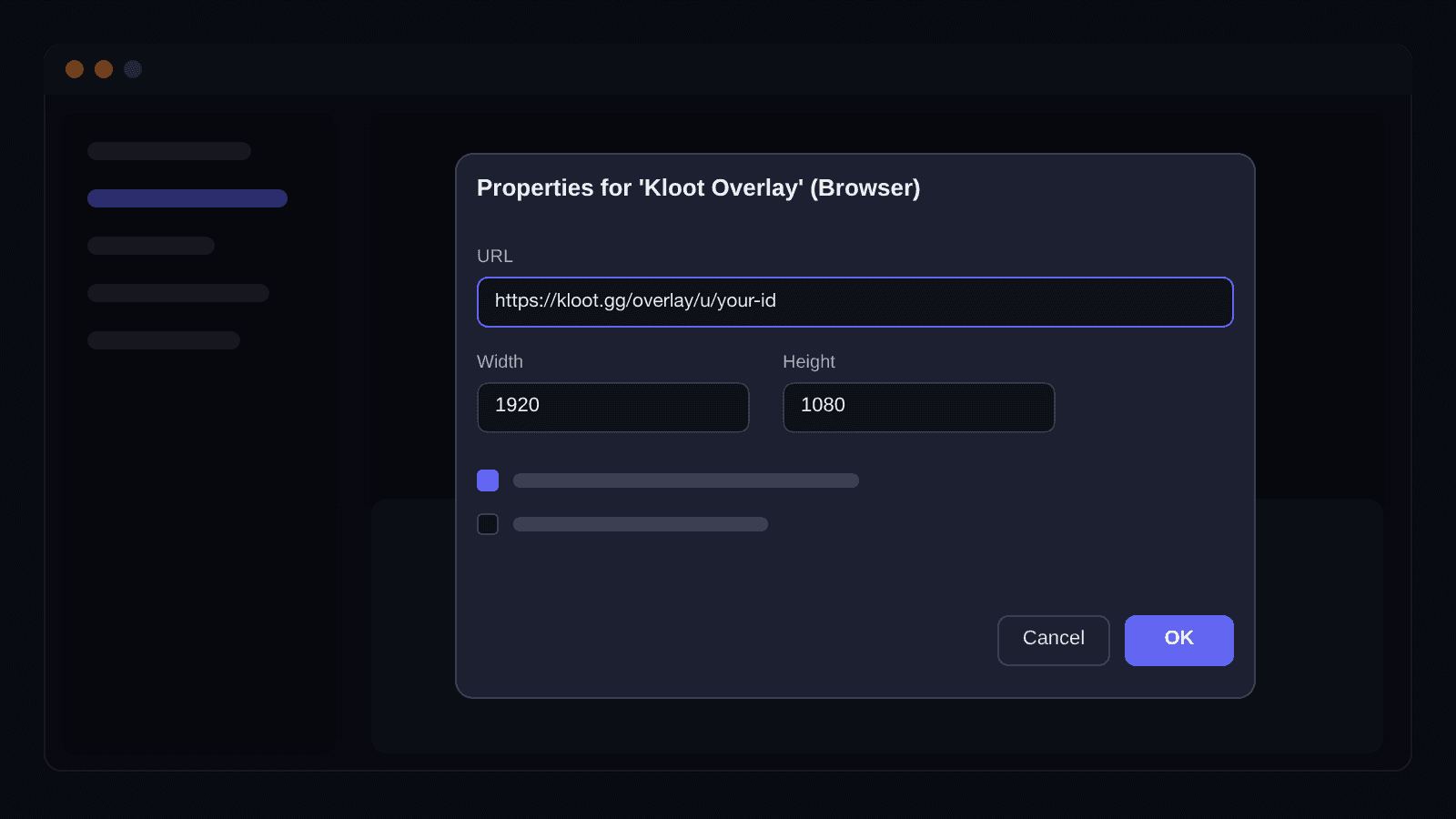
What you’ll build
One Kloot Browser source at the top of your OBS scene, sized to your canvas, showing whatever you fire from your deck.
Step by step
- 1
Copy your Kloot overlay URL
In your Kloot dashboard, copy your overlay URL. There’s just one, and it powers polls, giveaways, lower thirds, sponsors, effects — every tool — so you only add it to OBS once.
Keep this URL private. Anyone with it can see your overlay surface.
- 2
Add a Browser source in OBS
In the scene where you want your overlays, click the + under Sources, choose Browser, name it “Kloot”, and click OK.
- 3
Paste the URL and match your canvas
Paste your overlay URL into the URL field. Set Width to 1920 and Height to 1080 so the source matches a standard stream canvas and every overlay anchors where it should. Leave the other settings at their defaults.
If you stream at a different base resolution, set the width/height to match that instead.
- 4
Move it to the top and lock it
Drag the “Kloot” source to the top of your Sources list so overlays draw above your game capture and camera. Click the lock icon so you don’t nudge it by accident.
- 5
Fire a tool to test it
Open your Kloot control deck in a browser or on your phone and press any key — show a lower third or launch a poll. It appears in OBS instantly. That’s it: you’re live-ready, no extra sources to add.
Common mistakes to avoid
- ✕Adding a separate browser source for each tool — you only need one; every tool shares the same overlay URL.
- ✕Sizing the source smaller than your canvas — set it to 1920×1080 so corner and bottom overlays land in the right place.
- ✕Leaving the Kloot source below your game capture — overlays will hide behind it. Keep Kloot at the top of the list.
- ✕Expecting alerts to fire on their own — Kloot is hands-on: you fire tools from the deck. Nothing triggers automatically.
Set up once.
Fire it tonight.
One overlay URL, one deck, every tool — set it up in minutes and run it from any device.
Free forever · Pro $9/month or $79/year · Event Pass $5 for 48 hours · Prices + applicable taxes