Study-with-me overlays for OBS

On a study stream, the timer is the show.

Nobody is here for commentary. They are here to work alongside someone, and what makes that work is a clock they can trust, running where they can see it, while you stay on camera.

Try it in a browser — Free

Joined by streamers from 60+ countries. Try it with no account and no download.

Your deck · your stream

These are the real deck keys and the real overlays. Press one.

countries
60+

countries

counter bumps and key presses
12,000+

counter bumps and key presses

hours streamed with Kloot
500+

hours streamed with Kloot

What do you need to run a study-with-me stream?

A focus clock on screen in a layout that keeps your camera visible, a count of the sessions you have finished, and a count-up of how long the room has been working. The timer is the content, so it has to run without you stopping work to restart it.

One session, start to finish

Run a whole study session from one deck

You press Starting Soon. A Starting Soon card counting down to the first block.

Run of show

Built for study streams

Set it up once, press it every session

How do I put a Pomodoro timer on my study stream?

Make a screen with the Focus timer. Set the focus and break lengths once, put it in the cam window layout, and press its key when the session starts.

  • It moves from focus to break and back by itself, so you never stop working to restart it.
  • The cam window cuts a hole where your camera sits, so you stay on screen while it runs.
  • On Creator.

In your panel

On your stream

How do I count the sessions I finish?

Make a counter labelled Sessions and pin its +1 key to your deck. Press it when a block ends, and the room sees the tally go up.

  • Press +1 from your deck or from your phone.
  • You choose the corner it sits in, away from your camera.
  • Free includes one counter.
Counters · FreeSee Counters

In your panel

On your stream

How do I show how long the room has been studying?

Make a screen in Count up mode, in the band layout along the bottom. Press it when you start, and it counts up from there.

  • It counts from the moment you press it, so it can start with the first block, not when you went live.
  • The band keeps you and your desk in view.
  • On Creator.
Screens · CreatorSee Screens

In your panel

On your stream

Two minutes

How do I add study stream overlays to OBS?

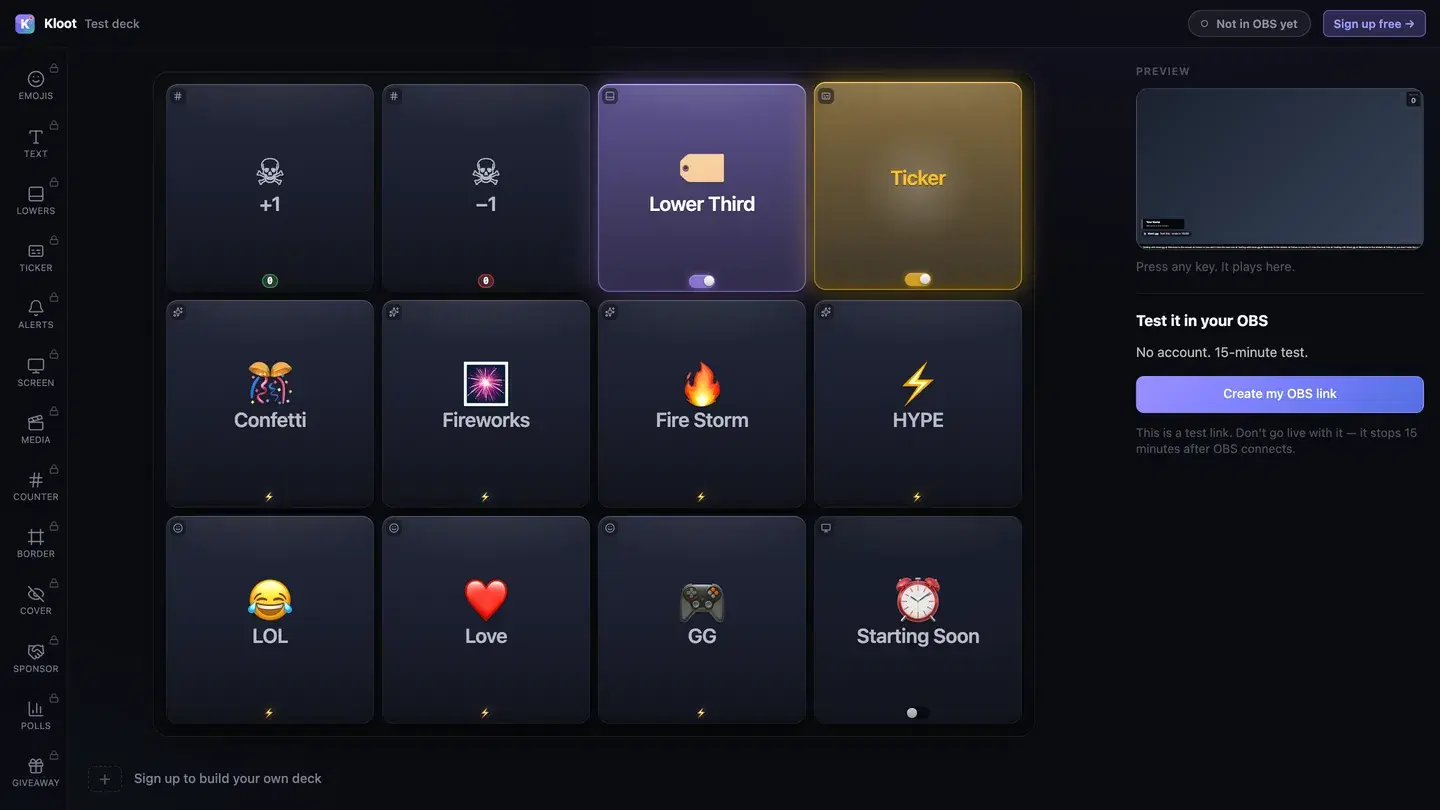
The Kloot test deck at /try: twelve keys in the middle, with Lower Third and Ticker switched on, a live preview of the stream on the right and a button that makes a link for OBS.
The free test deck at kloot.gg/try, exactly as it looks. Your own deck holds the keys you choose.

OBS · Browser source

URLhttps://kloot.gg/overlay/u/your-linkWidth1920Height1080
  1. 1

    Open the deck

    Open your deck in a browser. You can try it with no account.

  2. 2

    Add one Browser source

    In OBS, add a Browser source, paste your Kloot overlay link, and set it to 1920 × 1080.

  3. 3

    Press keys

    Press keys from the deck on your PC or your phone. Each one goes straight to your stream.

Hands free of OBS

Can I run it from my phone?

Yes. Your deck opens in your phone’s browser, so OBS, your guests and the conversation stay where they are. Nothing to install.

Control your stream from your phone

Your phone is the deck

KKloot LIVE
Full panel layout · auto-switches

Your stream reacts

LIVE👁 1,248
Poll opened

What should we play next?

Valorant
4242%
42%
Fortnite
3131%
31%
CS2
2727%
27%
Scan to vote
KLOOT
kloot.gg/join
The real overlay renderers — exactly what lands in your OBS

Screens library

Templates for study streams

📓 Grid PaperFree

Faint grid on off-white paper.

Use this template
🌙 Night DeskCreator

Soft lights drifting over a late-night desk.

Suits focus playlist: add your own track

Use this template
📚 LibraryCreator

Warm wood tones and floating dust motes.

Suits ambience: add your own track

Use this template
🪔 Desk LampCreator

One lamp sweeping a cool grey desk.

Suits focus playlist: add your own track

Use this template

Ways to run it

What does a study stream setup look like?

Example setup

A daily study-with-me

Four hours of 25 / 5 focus blocks, mostly silent.

  • Starting Soon
  • Focus block
  • Session +1

The focus timer runs the blocks. The host only presses Session +1 when one ends.

Runs on Creator

Example setup

An exam-season cowork room

A long session with a community working alongside.

  • Focus block
  • Uptime
  • Session +1

Uptime shows how long the room has been at it, so a late joiner knows how far in everyone is.

Runs on Creator

Plans

What does this setup cost?

Free

$0

forever

Covers

  • Starting Soon screen
  • sessions counter

Creator

$15/mo

or $8.25/mo billed yearly at $99

Adds

  • focus-block clock in a cam window
  • uptime clock

Everything on this page runs on Creator. See full pricing

Without Kloot

Kloot vs. doing it by hand in OBS

JobBy handWith Kloot
Focus blocksA Pomodoro website captured as a window, restarted every blockA focus timer that moves from focus to break by itself
Your cameraA timer pasted over your faceA cam window that keeps you on screen
Sessions doneA number you retype in a text source+1 from your deck or your phone
Time in the roomMental maths from when you went liveA count-up clock you start with the first block
In OBSA source for every widgetOne Browser source for all of it

What Kloot doesn’t do

It never reads your chat, never switches your OBS scenes, and doesn’t detect anything on its own. Every change on screen is a key you, or someone you gave a link to, pressed.

Works alongside the tools you already stream with

OBS StudioStreamlabsTwitchYouTubeKick

Questions

How do I add a Pomodoro timer to my study stream?

Make a screen with the Focus timer, set the focus and break lengths, and press its key when you start. It runs focus and breaks by itself. The Focus timer is on Creator.

Pomodoro timer for a study stream

Does the focus block switch to a break by itself?

Yes. The Pomodoro moves from focus to break and back by itself, so you are not restarting anything between blocks, which is the point on a stream where you are supposed to be working.

Will the timer cover my camera?

Not with the cam window layout, which cuts a hole where your camera sits so you stay on screen while the block runs. That matters more here than on most streams, because you being visibly at work is the format.

How do I count the sessions I finish?

Press +1 on a counter when a block ends, from your deck or from your phone. The number sits in a corner of the stream and adds up across the session. Free includes one counter.

How do I add a Starting Soon screen before the session?

Turn on a Starting Soon screen with a countdown to your first block. People who arrive early see when you begin.

Add a Starting Soon / BRB screen to your stream

Can I run the timer from my phone?

Yes. Your deck opens in your phone’s browser, so you can press keys without leaving your desk or touching OBS.

Control your stream from your phone

Does it work with Streamlabs as well as OBS?

Yes. Everything on this page is one overlay link. Add it as a Browser source at 1920 × 1080 in OBS or in Streamlabs Desktop.

Which plan do I need?

Free covers the Starting Soon screen and sessions counter. Creator ($15/mo) adds the focus-block clock in a cam window and uptime clock.

90 seconds from now,
confetti hits your stream.

Sign in → paste one URL → press a button. That’s it. Your viewers will notice the difference tonight.

Free forever · Creator $99/yr or $15/mo · Pro $149/yr or $25/mo · Event Pass $9 for 3 days