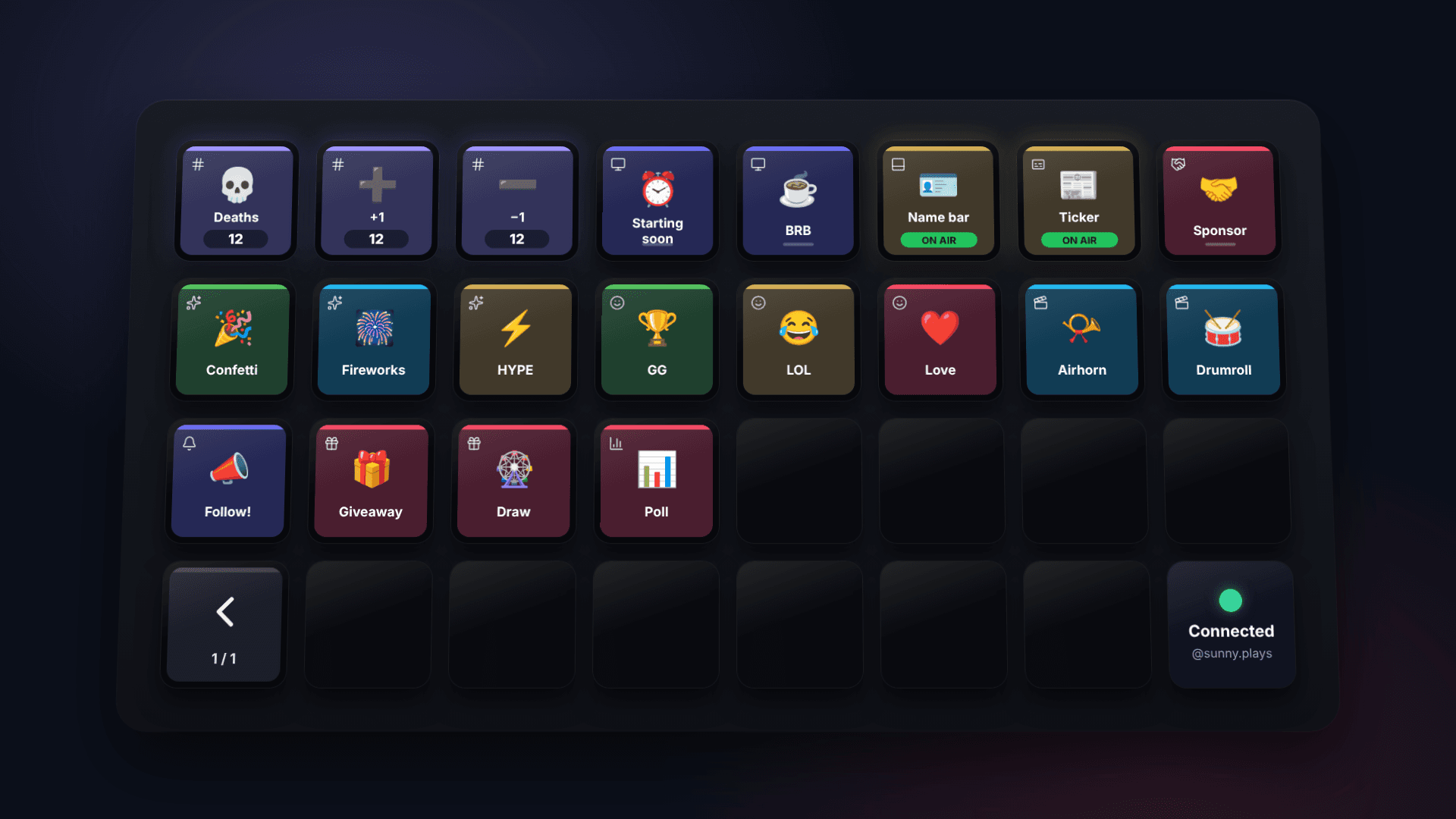
A Stream Deck is a grid of keys with screens. On a stream it is worth exactly what you put on it, and most people put the wrong things on it: scene switches they never use, a mute they already have on the mic, a browser bookmark. Here is what belongs there, and why setting it up has been the annoying part until now.
What a key is for
A key earns its place when the moment it serves happens with your hands on the controller. A death in a soulslike. The clutch round. A raid landing. Going on break. Showing the sponsor code when you say it out loud. Everything else, the things you do before the stream or between games, can live on a web panel; a physical key is for the twelve seconds a tab switch would cost you.
The twelve keys
- +1 on the counter that matters tonight (deaths, wins, jump scares).
- −1, because you will mis-press.
- Starting Soon with a countdown that is right.
- Be Right Back, one press on, one press off.
- Stream Ending.
- Hype: confetti or an emoji rain for the clutch.
- One sound you actually use (an airhorn, a fail, a drumroll).
- Lower third with your name and what you are playing.
- Ticker with the schedule or the socials.
- Sponsor callout, fired when you read the code.
- Giveaway: launch, then draw.
- Poll: let chat pick the next map.
That is a deck. If you have a Stream Deck +, put the counter on a dial too.
Laying the keys out
Put the keys you press without looking where your thumb already rests. On most desks that is the bottom row, nearest you: the counter, its −1 beside it, and the one sound. The screens (Starting Soon, Be Right Back, Ending) go on the top row, because you press them at the edges of a stream, not in the middle of a fight. Hype and the sponsor callout sit in between.
Keep each key doing one thing. A key that toggles a screen should toggle that screen and nothing else, so that pressing it twice is always a safe undo. If a key needs a label to be understood, the icon is wrong; if it needs two presses to be safe, it does not belong under your thumb.
A deck bigger than the device is fine. Kloot lays your keys out in the order you see them in the panel and adds next and previous keys when they do not fit on one page, so the order you arrange in Kloot is the order your hand learns.
Why it has been a chore
Every tool, free or paid, makes you build those keys one at a time. StreamElements has no "press to fire" surface at all; you edit and save. The desktop bots write a number to a text file that OBS reads, and the Stream Deck key calls a script. The official OBS plugin for Stream Deck breaks when OBS updates, which it did again in September 2025, and the mobile deck app pairs over Wi-Fi and drops. Even a web tool with trigger links (ours included, until now) meant: copy a URL, add a Website action, paste, tick a box, name it, find an icon, repeat twelve times. Twelve keys is an hour.
One click
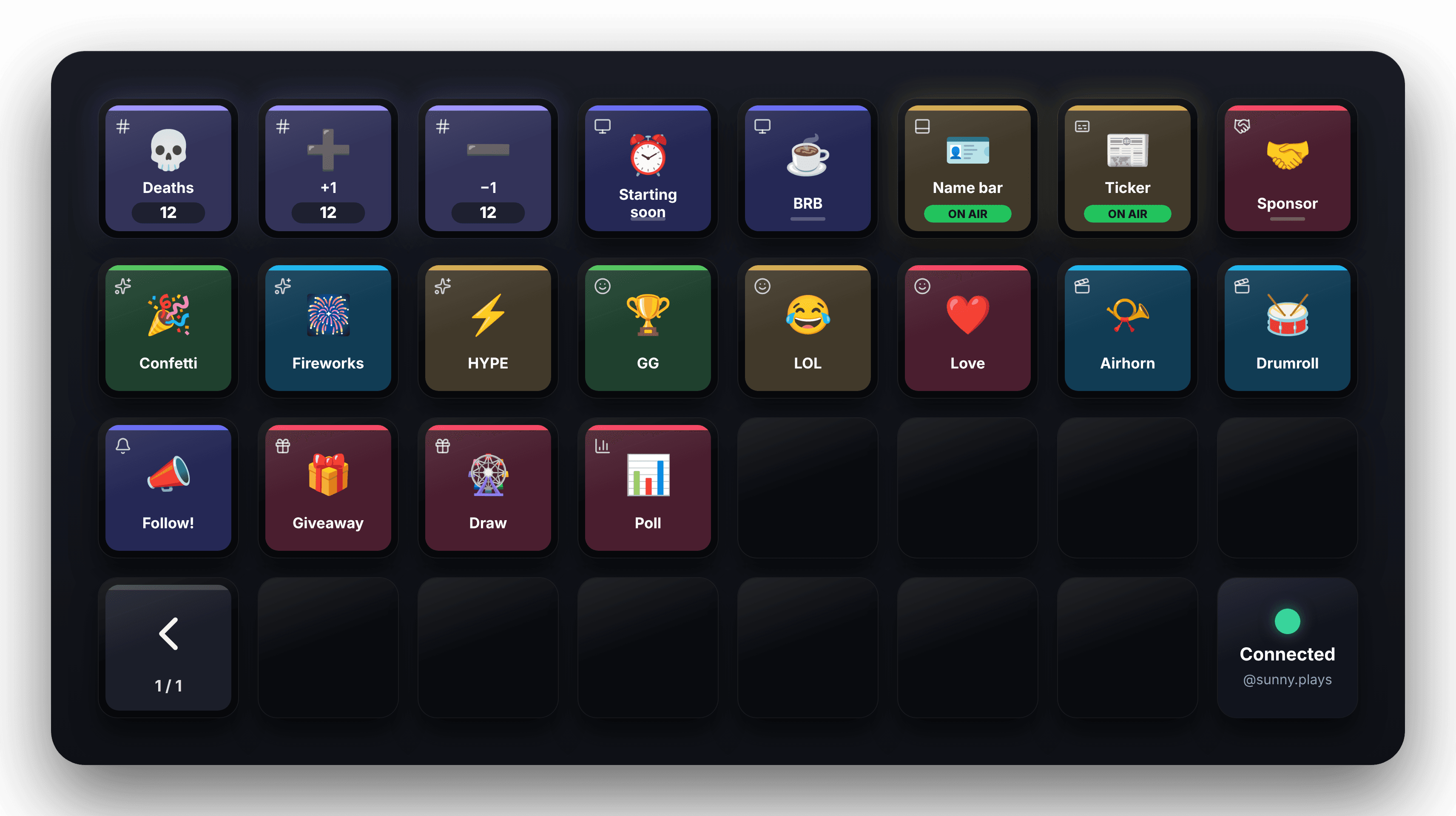
Kloot’s deck is already those twelve keys; they are what the panel is made of. So the Stream Deck integration does the obvious thing: it copies the deck. Open the Stream Deck sheet in the deck header, read a six-character code, type it into the Kloot plugin’s "Load my deck" key, press. Every key lands on the device with its icon and label. Counters show their count and bump on press (hold for −1). Screen keys light up while the screen is on air. Change your deck in Kloot and the device follows.
If you do not want a plugin, the same sheet downloads a profile for your model; double-click it and the keys are there, firing through the Website action Stream Deck already ships with. No live counts on that path, but no install either.
Giveaway and poll keys open Kloot in your browser on either path, where you launch, draw and close them as usual.
%20scale(0.8333333333333334)%22%20fill%3D%22none%22%20stroke%3D%22%23ffffff%22%20stroke-opacity%3D%220.75%22%20stroke-width%3D%222%22%20stroke-linecap%3D%22round%22%20stroke-linejoin%3D%22round%22%3E%3Cline%20x1%3D%224%22%20x2%3D%2220%22%20y1%3D%229%22%20y2%3D%229%22%2F%3E%3Cline%20x1%3D%224%22%20x2%3D%2220%22%20y1%3D%2215%22%20y2%3D%2215%22%2F%3E%3Cline%20x1%3D%2210%22%20x2%3D%228%22%20y1%3D%223%22%20y2%3D%2221%22%2F%3E%3Cline%20x1%3D%2216%22%20x2%3D%2214%22%20y1%3D%223%22%20y2%3D%2221%22%2F%3E%3C%2Fg%3E%3Ctext%20x%3D%2272%22%20y%3D%2266%22%20text-anchor%3D%22middle%22%20font-family%3D%22%26%2339%3BApple%20Color%20Emoji%26%2339%3B%2C%20%26%2339%3BSegoe%20UI%20Emoji%26%2339%3B%2C%20%26%2339%3BNoto%20Color%20Emoji%26%2339%3B%2C%20sans-serif%22%20font-size%3D%2244%22%20font-weight%3D%22600%22%20fill%3D%22%23ffffff%22%3E%E2%9E%95%3C%2Ftext%3E%3Ctext%20x%3D%2272%22%20y%3D%22100%22%20text-anchor%3D%22middle%22%20font-family%3D%22-apple-system%2C%20%26%2339%3BSegoe%20UI%26%2339%3B%2C%20Roboto%2C%20Helvetica%2C%20Arial%2C%20sans-serif%22%20font-size%3D%2217%22%20font-weight%3D%22700%22%20fill%3D%22%23ffffff%22%3E%2B1%3C%2Ftext%3E%3Crect%20x%3D%2230%22%20y%3D%22111%22%20width%3D%2284%22%20height%3D%2224%22%20rx%3D%2212%22%20fill%3D%22%23000000%22%20fill-opacity%3D%220.45%22%2F%3E%3Ctext%20x%3D%2272%22%20y%3D%22129%22%20text-anchor%3D%22middle%22%20font-family%3D%22-apple-system%2C%20%26%2339%3BSegoe%20UI%26%2339%3B%2C%20Roboto%2C%20Helvetica%2C%20Arial%2C%20sans-serif%22%20font-size%3D%2218%22%20font-weight%3D%22800%22%20fill%3D%22%23ffffff%22%3E12%3C%2Ftext%3E%3C%2Fsvg%3E)
%20scale(0.8333333333333334)%22%20fill%3D%22none%22%20stroke%3D%22%23ffffff%22%20stroke-opacity%3D%220.75%22%20stroke-width%3D%222%22%20stroke-linecap%3D%22round%22%20stroke-linejoin%3D%22round%22%3E%3Cline%20x1%3D%224%22%20x2%3D%2220%22%20y1%3D%229%22%20y2%3D%229%22%2F%3E%3Cline%20x1%3D%224%22%20x2%3D%2220%22%20y1%3D%2215%22%20y2%3D%2215%22%2F%3E%3Cline%20x1%3D%2210%22%20x2%3D%228%22%20y1%3D%223%22%20y2%3D%2221%22%2F%3E%3Cline%20x1%3D%2216%22%20x2%3D%2214%22%20y1%3D%223%22%20y2%3D%2221%22%2F%3E%3C%2Fg%3E%3Ctext%20x%3D%2272%22%20y%3D%2266%22%20text-anchor%3D%22middle%22%20font-family%3D%22%26%2339%3BApple%20Color%20Emoji%26%2339%3B%2C%20%26%2339%3BSegoe%20UI%20Emoji%26%2339%3B%2C%20%26%2339%3BNoto%20Color%20Emoji%26%2339%3B%2C%20sans-serif%22%20font-size%3D%2244%22%20font-weight%3D%22600%22%20fill%3D%22%23ffffff%22%3E%E2%9E%96%3C%2Ftext%3E%3Ctext%20x%3D%2272%22%20y%3D%22100%22%20text-anchor%3D%22middle%22%20font-family%3D%22-apple-system%2C%20%26%2339%3BSegoe%20UI%26%2339%3B%2C%20Roboto%2C%20Helvetica%2C%20Arial%2C%20sans-serif%22%20font-size%3D%2217%22%20font-weight%3D%22700%22%20fill%3D%22%23ffffff%22%3E%E2%88%921%3C%2Ftext%3E%3Crect%20x%3D%2230%22%20y%3D%22111%22%20width%3D%2284%22%20height%3D%2224%22%20rx%3D%2212%22%20fill%3D%22%23000000%22%20fill-opacity%3D%220.45%22%2F%3E%3Ctext%20x%3D%2272%22%20y%3D%22129%22%20text-anchor%3D%22middle%22%20font-family%3D%22-apple-system%2C%20%26%2339%3BSegoe%20UI%26%2339%3B%2C%20Roboto%2C%20Helvetica%2C%20Arial%2C%20sans-serif%22%20font-size%3D%2218%22%20font-weight%3D%22800%22%20fill%3D%22%23ffffff%22%3E12%3C%2Ftext%3E%3C%2Fsvg%3E)
What the keys show
A key on a Stream Deck has a screen, and a plugin can draw on it. Kloot uses that for the three things you otherwise check by alt-tabbing. A counter key shows the counter’s current number, so you know the death count without looking at the overlay. A screen, lower third or sponsor key shows a green ON AIR bar while it is on stream, so you never wonder whether Be Right Back is still up. And an optional Status key turns red when your overlay is not connected, which is the one thing worth knowing before you go live.
Because the keys follow the deck, a change you make in Kloot reaches the device on its own. Add a key in the panel and it appears on the Stream Deck in the next free slot; a key you remove simply goes away.
Setting it up
- Download the Kloot plugin from the Stream Deck integration page and double-click it. Stream Deck installs a Kloot category.
- In Kloot, press the Stream Deck button in your deck header. The sheet shows a six-character code, good for ten minutes.
- In the Stream Deck app, drag Kloot → Load my deck onto any key, type the code and press Connect.
- Press Load my deck on the device. The first time, Stream Deck asks to add the Kloot profile; say yes.
- Press anything. A Back key on the first page returns you to your own profile.
Your mods’ Stream Decks
The part we think matters most: share your deck and each helper connects their own Stream Deck, with their own code, as Operator or Editor. Their presses carry their name in your history. Remove them and their keys go dark. Nothing of yours, not the overlay link, not billing, not a winner’s contact details, ever reaches their device.
What it costs
Stream Deck is part of Pro ($9/month), and your helpers get it on your plan. The Website-action trigger links that Pro already had keep working for Streamer.bot and anything else that can call a URL.