How to share a stream recap of your counters
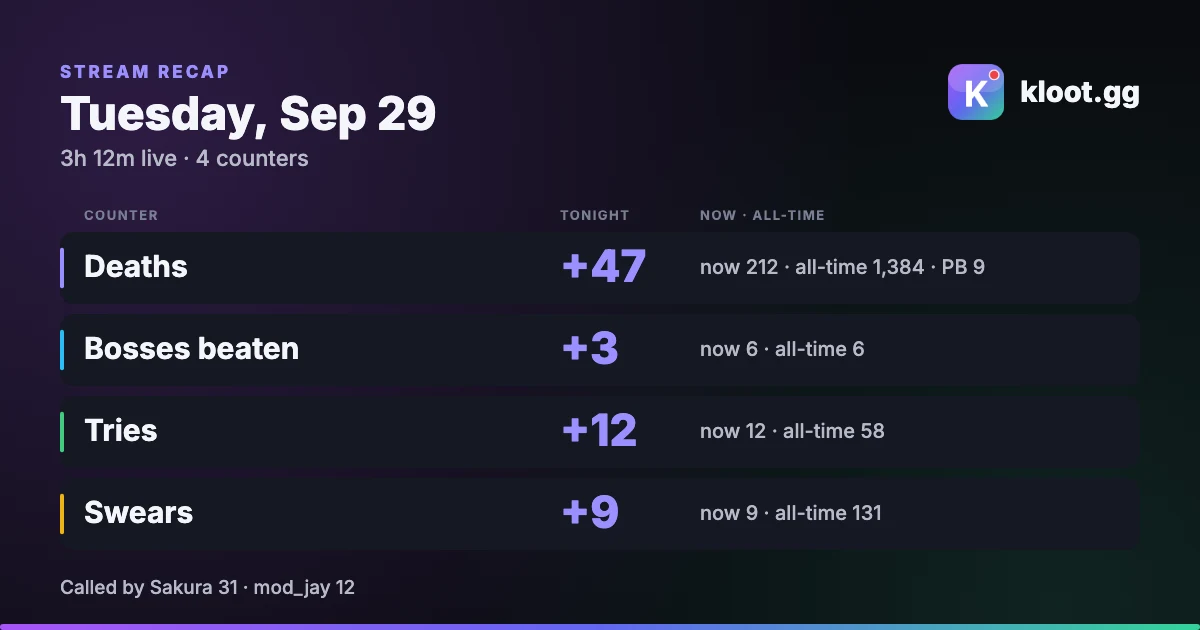
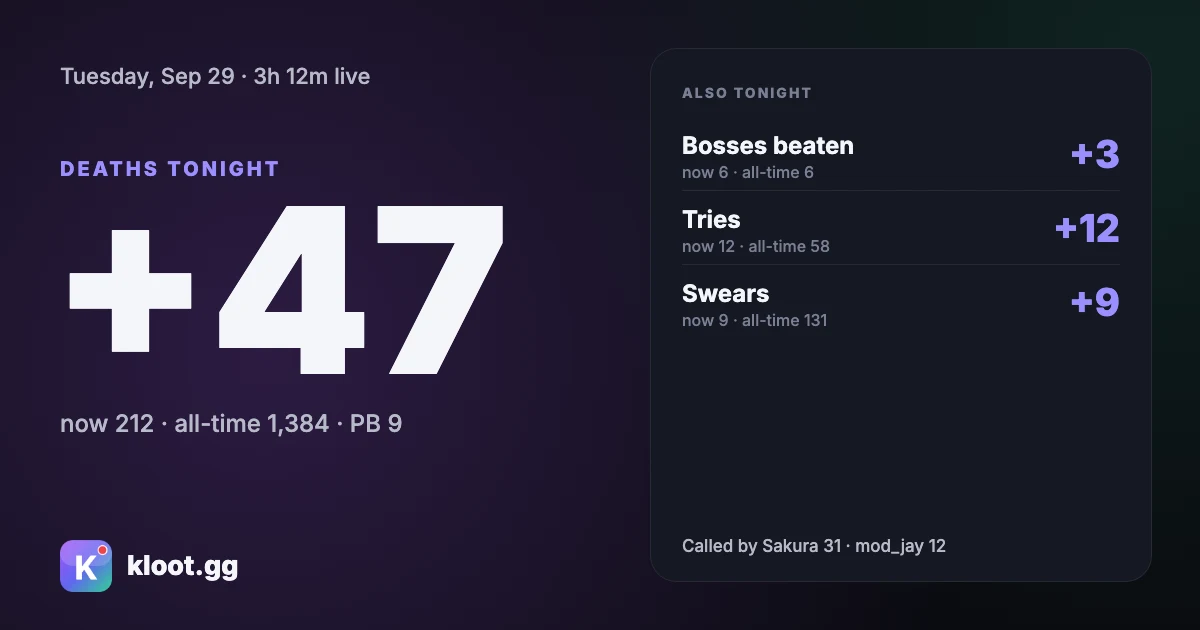
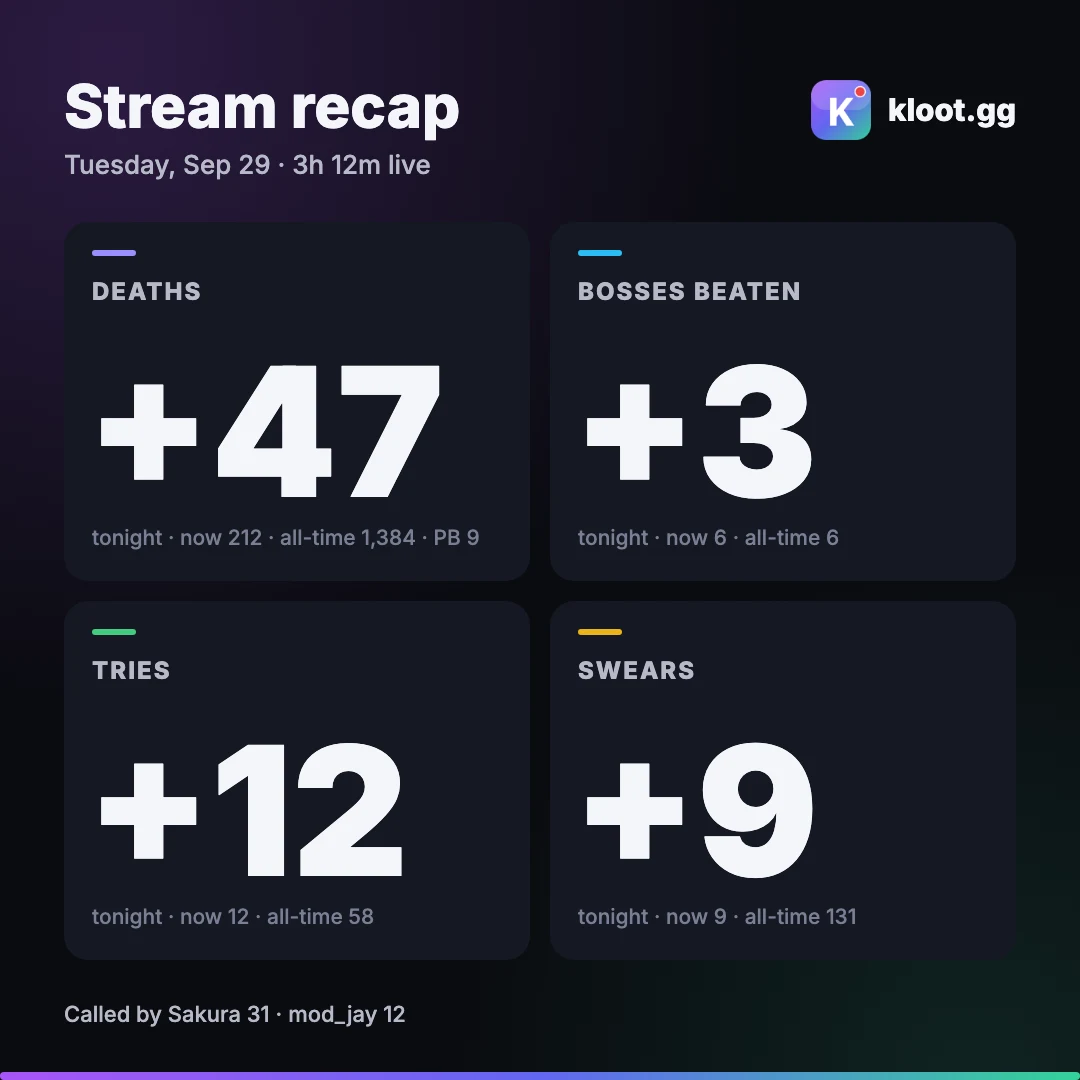
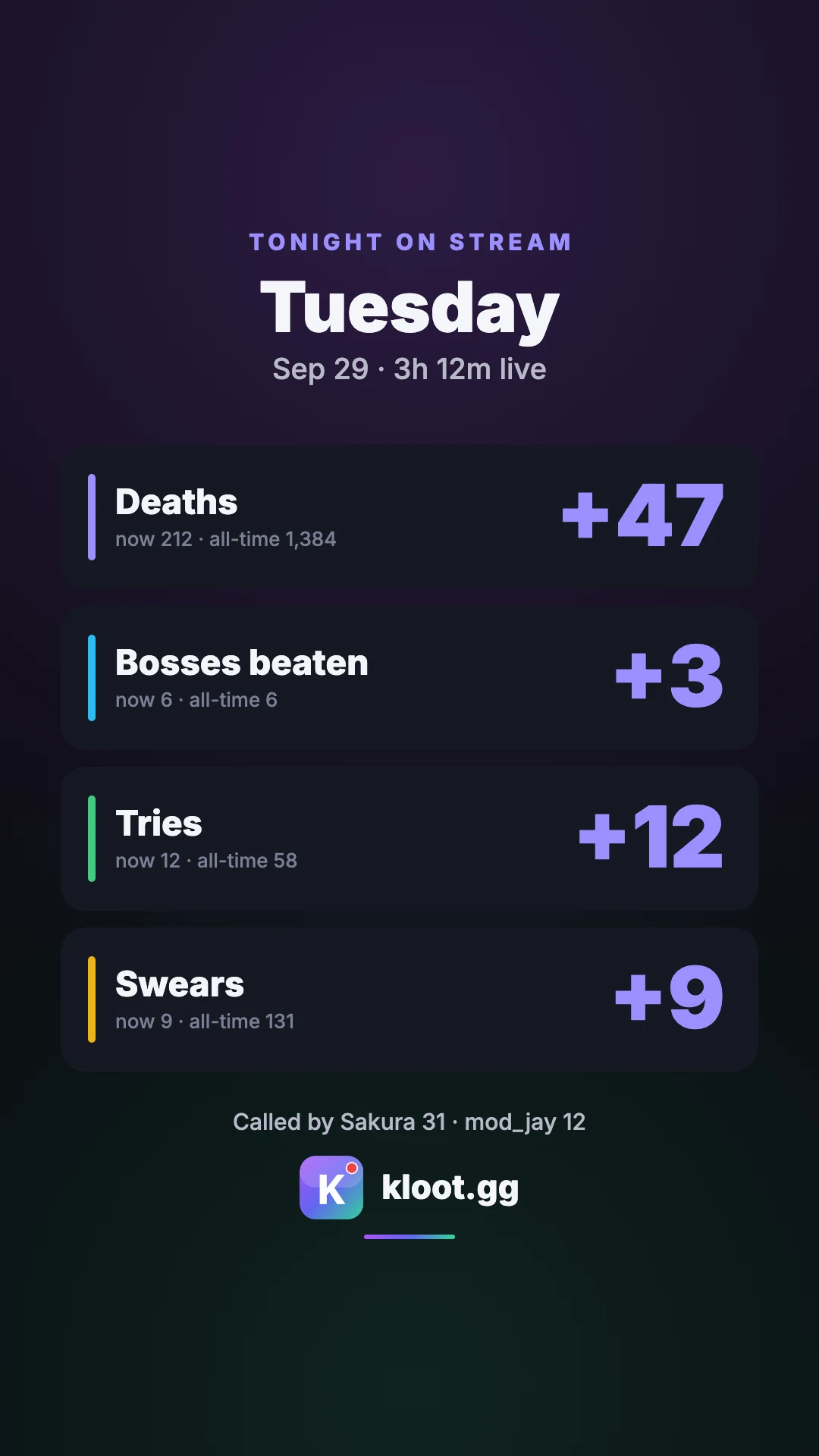
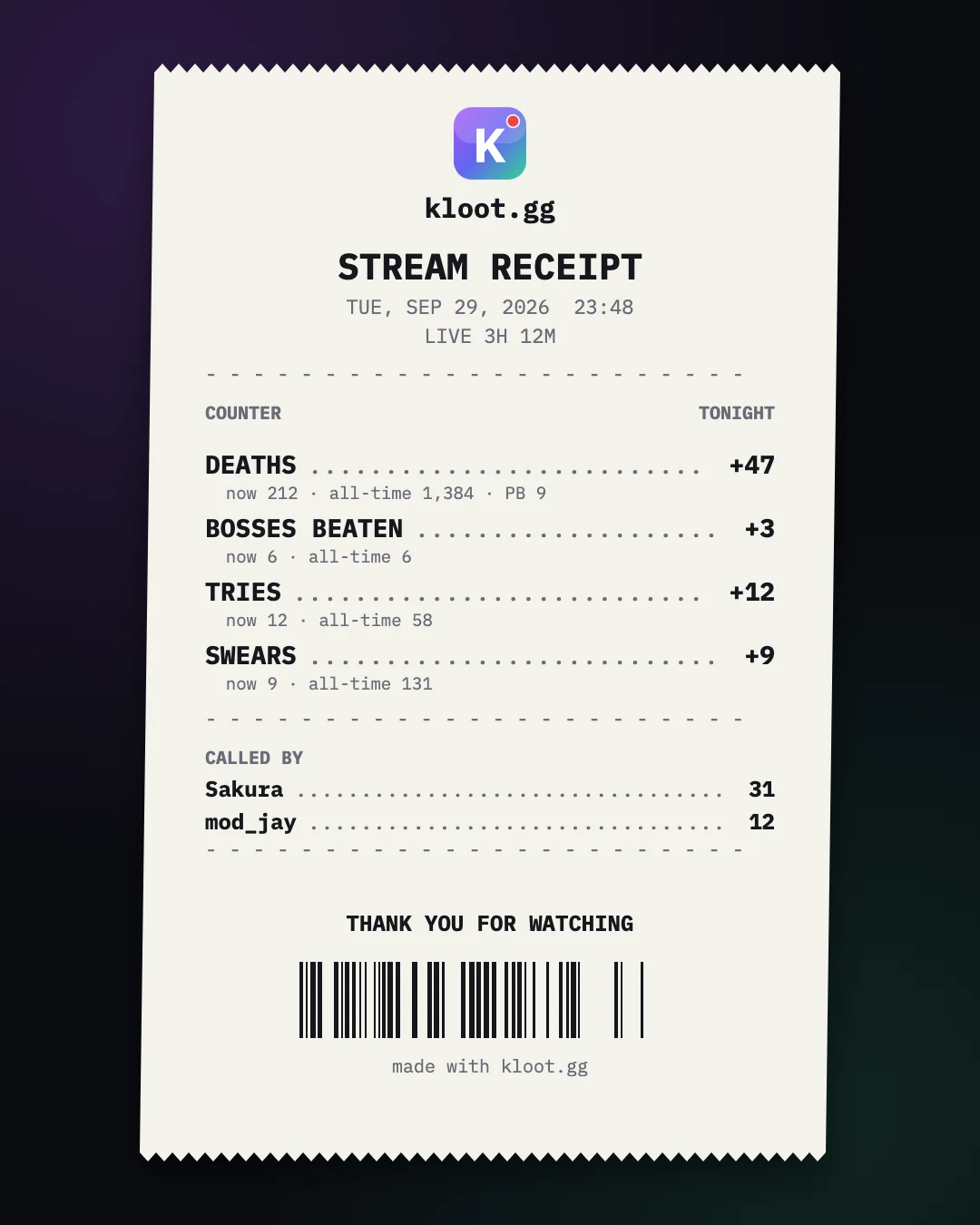
The numbers chat watched all night are gone the moment you go offline. A Kloot session keeps them: press End session and a recap card opens with what every counter did tonight, where it ended, all-time and your personal best. Pick the layout for where you post and download it.
How do you share your stream stats after a stream?
In Kloot, run your counters in a session and press End session when you go offline. A recap card opens with each counter’s change tonight, where it ended, all-time and personal best. Pick one of five layouts and download it. Kloot never posts it for you.
You set it up here
It lands here — try the deck keys yourself
What you’ll build
A card of tonight’s counts in the layout you pick, ready to post to X, Discord, Instagram or your Stories.
Step by step
- 1
Start a session when you go live
On the counter card in your panel, press Start session. Every counter starts counting “tonight” from zero while all-time keeps climbing.
Kloot never starts a session for you. Without one, the recap has nothing to show.
- 2
Stream as usual
Press your counters from the panel, a Stream Deck key or your phone, or let a mod press them with a co-pilot invite. The card counts who called what.
- 3
Press End session
When you finish, press End session. The session is saved to each counter’s history and the recap opens straight away.
- 4
Pick a layout
Choose the card for where you’ll post it. Scoreboard and Spotlight fit X and Discord, Tiles fits Instagram, Story fits Stories and TikTok, and Receipt is the fun one. Kloot remembers your pick for next time.
- 5
Download it
Download saves the card as a PNG, sized for where you post it. It stays on your device until you do.
Download before you close the recap. It opens when you end a session.
How a counter runs, live
Once it’s built, running a counter is four keys — show it, bump it, correct it, reset it. Here’s the whole loop, and what each side sees.
- You put it up· step 1
Toggle the counter on-screen
Tap the Show/Hide key when the session starts. The counter fades into its corner at the starting value — label above, number below, styled the way you built it.
You: Press Show/HideOverlay: Fades into its cornerViewers: Sees the score is being kept - You bump it· step 2
Press +1 the moment it happens
A kill lands, a win banks, chat loses a bet — you press +1 and the number pulses with a flash of color. You are the source of truth, so it works in every game ever made and never breaks on a patch.
You: Press +1 as the kill landsOverlay: Number pulses + flashesViewers: Catches the moment land - You correct it· step 3
Fix a miscount instantly
Double-tapped, or counted one that didn’t count? Press −1 and it steps back with a red flash. No menus, no editing mid-game — the correction is one key, same as the bump.
You: Press −1Overlay: Steps back, red flashViewers: Sees an honest scoreboard - You reset· step 4
Reset for the next game
Match over — press Reset and the counter snaps back to its starting value for the next round. Leave it on screen between games or toggle it off; the counter keeps its style and corner for next stream.
You: Press Reset between matchesOverlay: Snaps back to the startViewers: Fresh score, new game
What streamers count
Anything with a number worth watching climb. The counters that earn their corner:
Kills & wins per session
When: Shooters, battle royales, ranked grinds — any stream where tonight has a score.
Why it works: A running kill or win count gives the whole session a scoreboard. Viewers who join at hour three instantly know how it’s going.
The deaths counter
When: Souls-likes, roguelikes, rage games — anywhere chat is counting your failures anyway.
Why it works: It’s the chat-favorite running joke: every death bumps the number, and the number becomes the story of the stream. Own the bit before chat does.
Challenge streams
When: Push-ups per death, jump-scare tallies, “every time I say the word” counters.
Why it works: The challenge only works if the count is public and live. One key per event keeps it honest — and the climbing number is the content.
Subathon & goal tracking
When: Sub goals, donation milestones, “100 wins this month” arcs.
Why it works: Set a goal and the counter shows “86 / 100” with a celebration when it crosses the line — so the whole room is watching the same finish line.
The counters you can run
Wins, deaths, a huge challenge number, or a goal with a finish line — every preview below is the real overlay renderer, ticking live in your colors.
Wins — the clean scoreboard
The classic session tracker: green number, quiet label, pulse on every bump.
Deshawn runs ranked nights with “Wins” top-left all session. Every victory is one press of +1 — and clips of the win always have the score in frame.
One +1 key bumps it liveDeaths — the running joke
Red accent, flash animation — the number chat came to watch climb.
MaraPlays keeps a “Deaths” counter through every Souls run. Chat spams the skull each time it flashes, and the final number is the stream title tomorrow.
Bump it from your phone mid-rageChallenge — the big number
Number size up to 120px, label below — readable from a phone stream at arm’s length.
“Push-ups” at 72px for a fitness-forfeit stream: Kai taps +1 as each rep lands, and the huge number is legible even on the IRL cam.
Reset key clears it for round twoGoal — the finish line
Set a target and the counter shows “value / goal” — with a celebration when it crosses.
A subathon with “New subs 96 / 100” on screen: Tasha bumps it as subs land, and the confetti burst fires itself the moment the count reaches the goal.
Celebration fires on the goal — no extra keyWhere it lands on your stream
Pick any of nine zones — top-right is the classic kill-counter home. Run up to five counters at once on Creator (ten on Pro), each holding its own corner.
Common mistakes to avoid
- ✕Forgetting Start session: tonight stays at 0 and the card has nothing to show.
- ✕Pressing End session before the last death of the night lands.
- ✕Closing the recap without downloading it.
Frequently asked
Which plan is the recap on?
Creator and Pro, because it’s made from a session. On Free the counter keeps its count but has no sessions.
Is anything posted for me?
No. The card is drawn in your browser and only leaves it when you download it.
What’s on the card?
Each counter’s change tonight, where it ended, all-time and personal best, how long you were live, and the co-pilots who pressed.
I run up to 10 counters on Pro. Do they all fit?
Receipt lists all 10. The other layouts show the ones that fit and add “+N more”.
End the stream.
Post the numbers.
Counters with sessions and a recap card are on Creator.
Free forever · Creator $99/yr or $15/mo · Pro $149/yr or $25/mo · Event Pass $9 for 3 days